Cette configuration YAML crée une ConfigMap Kubernetes nommée php-fpm-healthcheck contenant un script Bash nommé php-fpm-healthcheck.sh.
Le script vérifie si les ports 9000 et 8080 sont tous les deux ouverts sur l’adresse IP 127.0.0.1 en utilisant la commande nc (netcat). Si l’un des ports n’est pas ouvert, le script renvoie un code d’erreur 1, sinon il renvoie un code de réussite 0. Cette ConfigMap peut être utilisée pour déployer le script dans un conteneur Kubernetes et exécuter le script en tant que point de contrôle de santé (liveness ou readiness) pour vérifier l’état de l’application.
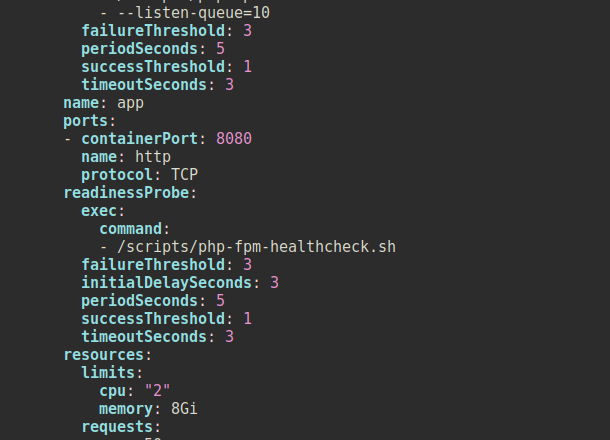
livenessProbe:
  exec:
    command:
    - /scripts/php-fpm-healthcheck
  failureThreshold: 3
  periodSeconds: 5
  successThreshold: 1
  timeoutSeconds: 3

readinessProbe:
  exec:
    command:
    - /scripts/php-fpm-healthcheck
  failureThreshold: 3
  initialDelaySeconds: 3
  periodSeconds: 5
  successThreshold: 1
  timeoutSeconds: 3
apiVersion: v1
kind: ConfigMap
metadata:
  name: php-fpm-healthcheck
data:
  php-fpm-healthcheck.sh: |
    #!/bin/bash

    if ! nc -zv 127.0.0.1 9000 >/dev/null 2>&1; then
        exit 1
    elif ! nc -zv 127.0.0.1 8080 >/dev/null 2>&1; then
        exit 1
    else
        exit 0
    fi
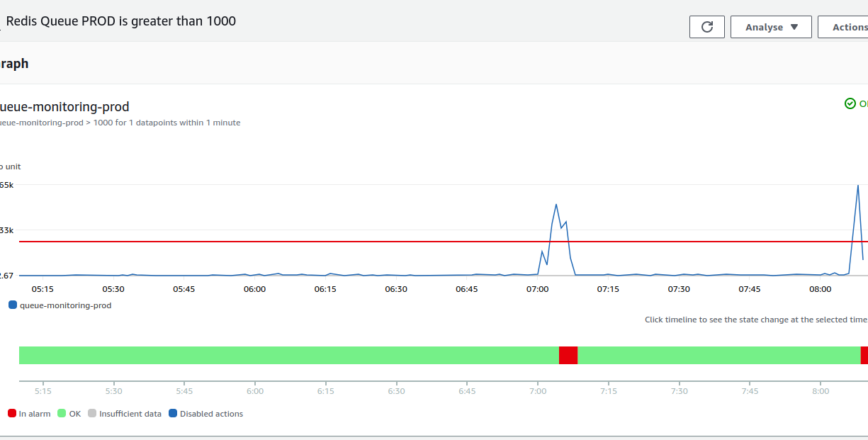
En gros, on créé un conteneur avec Redis et aws cli, qui va lire le nombre d’événements et envoyer l’info en tant que métrique personnalisée à CloudWatch. Ensuite on peut créer une alarme qui sera déclenchée à partir d’un certain seuil et comme action possible augmenter le nombre d’instances dans un groupe asg …
Commençons par construire une image Docker minimale:
FROM ubuntu:22.04

RUN  apt-get update; DEBIAN_FRONTEND=noninteractive apt-get install wget curl jq zip unzip -y \
     && curl "https://awscli.amazonaws.com/awscli-exe-linux-x86_64.zip" -o "awscliv2.zip" \
     && unzip awscliv2.zip && bash ./aws/install \
     && apt autoclean \
     && apt autoremove

RUN apt-get install redis less -y
Ceci est le Dockerfile
docker build -t xxx.dkr.ecr.eu-central-1.amazonaws.com/docker-images:queue-monitor-v1 -f Dockerfile .
docker push xxx.dkr.ecr.eu-central-1.amazonaws.com/docker-images:queue-monitor-v1
Ensuite notre manifest pour k8s:
apiVersion: apps/v1
kind: Deployment
metadata:
  name: queue-monitor-prod
  namespace: queue-monitor
  annotations:
    reloader.stakater.com/auto: "true"
spec:
  replicas: 1
  selector:
    matchLabels:
      app: queue-monitor-prod
  strategy:
    rollingUpdate:
      maxSurge: 1
      maxUnavailable: 0
    type: RollingUpdate
  template:
    metadata:
      labels:
        app: queue-monitor-prod
    spec:
      terminationGracePeriodSeconds: 0
      containers:
      - name: app
        securityContext:
          runAsUser: 0
          runAsGroup: 0
        command: [ "/bin/bash", "-c" ]
        args: [ "/etc/queue-monitor/startup.sh" ]
        image: xxx.dkr.ecr.eu-central-1.amazonaws.com/docker-images:queue-monitor-v1
        imagePullPolicy: IfNotPresent
        lifecycle:
          postStart:
            exec:
              command: ["/bin/sh", "-c", "cp -a /etc/.aws /root/.aws"]
        env:
        - name: AWS_PROFILE
          value: prod
        resources:
          limits:
            cpu: 1
            memory: 1Gi
          requests:
            cpu: 1m
            memory: 1Mi
        livenessProbe:
          exec:
            command:
            - /bin/bash
            - -c
            - /etc/queue-monitor/health.sh
          failureThreshold: 1
          initialDelaySeconds: 5
          periodSeconds: 10
          successThreshold: 1
          timeoutSeconds: 1
        readinessProbe:
          exec:
            command:
            - /bin/bash
            - -c
            - /etc/queue-monitor/health.sh
          initialDelaySeconds: 3
          periodSeconds: 5
          successThreshold: 1
          timeoutSeconds: 1
        volumeMounts:
        - name: config
          mountPath: "/etc/queue-monitor"
        - name: awsconfig
          mountPath: "/etc/.aws"
      volumes:
      - name: config
        projected:
          defaultMode: 0755
          sources:
          - configMap:
              name: queue-monitor-config-prod
      - name: awsconfig
        secret:
          secretName: queue-monitor-sec
          items:
          - key: credentials
            path: credentials
            mode: 0600
---
apiVersion: v1
kind: ConfigMap
metadata:
  name: queue-monitor-config-prod
  namespace: queue-monitor
data:
  health.sh: |
    exit 0

  startup.sh: |
    #!/bin/bash
    #
    #loop starting

    while true
    do

    queue=$(redis-cli -h cluster-queue.xxxxxxxx.0001.euc1.cache.amazonaws.com LLEN queues:default | awk '{print $1}')
    TIMESTAMP=$(date -u +"%Y-%m-%dT%H:%M:%S.000Z")
    aws cloudwatch put-metric-data --metric-name queue-monitoring-prod --namespace queue-monitoring --value "$queue" --timestamp "$TIMESTAMP"

    sleep 15

    done
Je vous laisse personnaliser le vôtre, ce setup n’est pas parfait car a dû être machiné en une dizaine de minutes seulement.
Sous ubuntu 20/22 aws rds
apt-get install mysql-client-core-8.0=8.0.19-0ubuntu5
apt-mark hold mysql-client mysql-client-core
mysqldump --set-gtid-purged=OFF --single-transaction --column-statistics=off --skip-lock-tables -h xxx.us-east-1.rds.amazonaws.com -uadmin -pxxx xxx > xxx.sql
ne fonctionne aucunement pas avec d’autres versions 8.0.19+ ….
ingress:
  enabled: true
  annotations:
    kubernetes.io/ingress.class: "nginx"
    nginx.ingress.kubernetes.io/proxy-body-size: 256m
    nginx.ingress.kubernetes.io/cors-allow-origin: "*"
    nginx.ingress.kubernetes.io/enable-cors: "true"
  host: ***.org
  path: "/"
    nginx.ingress.kubernetes.io/cors-allow-origin: "*"
    nginx.ingress.kubernetes.io/enable-cors: "true"
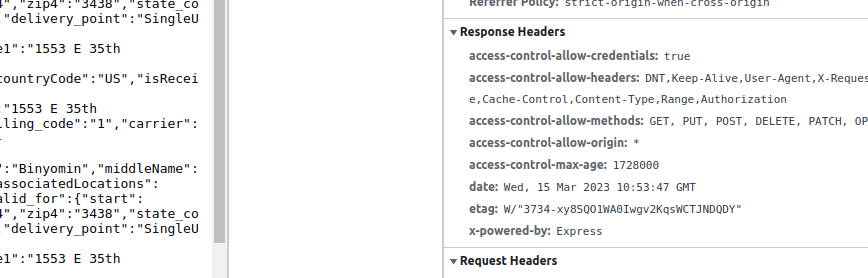
CORS (Cross-Origin Resource Sharing) est un mécanisme qui permet aux navigateurs web d’accéder aux ressources d’un serveur situé sur un domaine différent. Sans CORS, les navigateurs appliquent la même politique de même origine (same-origin policy) qui interdit l’accès à des ressources provenant de domaines différents pour des raisons de sécurité.
Dans ce contexte, les annotations « nginx.ingress.kubernetes.io/cors-allow-origin » et « nginx.ingress.kubernetes.io/enable-cors » sont utilisées pour activer la prise en charge de CORS par le contrôleur Ingress Nginx dans Kubernetes. La première annotation spécifie la valeur de l’en-tête « Access-Control-Allow-Origin » à utiliser pour toutes les requêtes entrantes, qui est ici définie sur « * ». La seconde annotation active la prise en charge de CORS pour cette ressource Ingress.
En activant CORS, cela permet aux applications web d’envoyer des requêtes à partir de n’importe quel domaine, ce qui est souvent utile pour les API. Cependant, il est important de noter que cela peut également présenter des risques de sécurité si la configuration n’est pas correctement gérée. Par conséquent, il est recommandé de mettre en place des politiques de sécurité appropriées pour contrôler l’accès aux ressources.
This command will create a new pod named « mysql-client » and start a bash session inside the container running the MySQL client image.
kubectl run mysql-client --image=mysql:8.0 -it --rm --restart=Never -- /bin/bash
Here’s a breakdown of the command:
kubectl run: This command is used to create a new pod or deployment in Kubernetes.mysql-client: This is the name of the pod that will be created.--image=mysql:8.0: This specifies the Docker image to use for the container.-it: This starts an interactive terminal session inside the container.--rm: This flag specifies that the container should be removed after it exits.--restart=Never: This specifies that the pod should not be restarted if it stops running for any reason.-- /bin/bash: This starts a bash session inside the container.
Once the command is executed, you should see a bash prompt inside the container. From there, you can run MySQL commands to interact with your MySQL server.
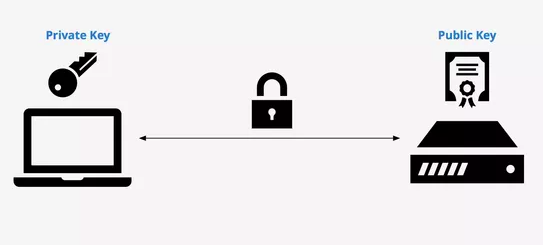
This command will generate an RSA SSH key pair with a key size of 4096 bits and save it to a file named « my-key-pair » in the current directory.
ssh-keygen -t rsa -b 4096 -f my-key-pair
Here’s a breakdown of the command:
ssh-keygen: This is the SSH key generation tool.-t rsa: This specifies that we want to generate an RSA key pair.-b 4096: This specifies the key size to use, which in this case is 4096 bits.-f my-key-pair: This specifies the filename to use for the key pair. The public key will be saved to « my-key-pair.pub », while the private key will be saved to « my-key-pair ».
After running this command, you’ll be prompted to enter a passphrase for the private key. This is an optional step, but adding a passphrase can add an extra layer of security to your SSH key pair.
Once the key pair is generated, you can use the private key to connect to remote servers that have the corresponding public key added to their authorized keys list.
mysql -h***.us-west-2.rds.amazonaws.com -uroot -p*** --raw --silent -e "SELECT CONCAT('SHOW GRANTS FOR ''', user, '''@''', host, ''';') AS query FROM mysql.user" > /tmp/users.sql
This command uses the MySQL command line tool to generate a SQL file called « users.sql » in the /tmp directory. The SQL file contains a series of SHOW GRANTS statements for each user on the database.
mysql -h***.us-west-2.rds.amazonaws.com -uroot -p*** --raw --silent -e "source /tmp/users.sql" > /tmp/grants.sql
This command executes the SHOW GRANTS statements in the « users.sql » file and saves the output to a new SQL file called « grants.sql » in the /tmp directory.
sed -i 's/$/;/g' /tmp/grants.sql
This command uses sed to add a semicolon at the end of each line in the « grants.sql » file. This is necessary to make the file a valid SQL script.
After running these commands, the « grants.sql » file in the /tmp directory will contain a series of GRANT statements for each user on the database, allowing you to easily see the permissions granted to each user.